
Communication in CtrlChain is now easier, faster, and more organised.
Managing operational conversations just got easier. With the new Inbox, you can access and follow your conversations from one central place, while keeping them connected to the right transport reference.
|
|
What's new?A new "Inbox" button has been added to the main navigation. This is your new communication hub, where you can create, manage and track all conversations related to your transport operations. |
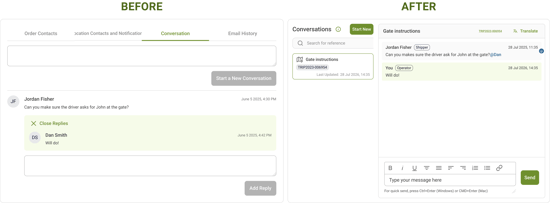 |
A simpler conversation experienceCreating a conversation is now much more intuitive. Every conversation is connected to an Order/Trip Reference, making it easy to understand the context without searching through emails or external tools. The Inbox is divided into two sections:
|
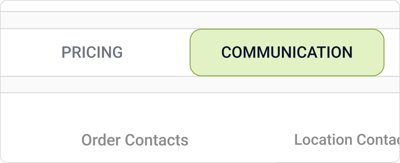 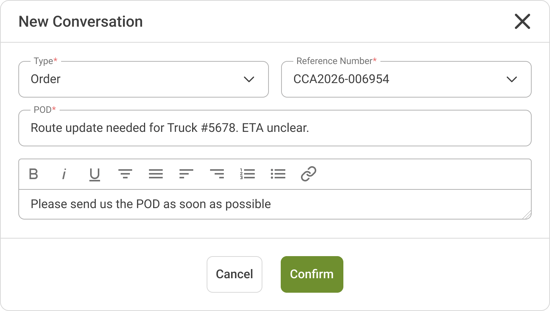 |
How to start a new conversation:Step 1 - Start a new conversation Click "Start new" in the communication tab (when you don't have any conversations yet) , or click the "Inbox" button and select "Start new". *When starting a conversation from the Communication tab, the relevant Order / Trip Reference will already be pre-filled. When starting from the Inbox, you’ll need to add the reference manually. Step 2 - Add the conversation details Complete the required information by:
Step 3 - Choose who to chat with and send your message Tag the recipient using the "Chat with" field, type your message, and click "Send". Your conversation will appear in your Inbox and remain linked to the selected order reference for easy tracking. |
Important
Use Inbox for all communication related to a specific order, trip, lane, shipment, or transport operation. Every conversation is linked to a reference, making it easier to track communication and keep all stakeholders aligned.
Use Contact Support for general, non-operational conversations, such as financial, account-related, or other non-operational questions.
Keep your communication organised
With Centralised Conversations, all shipment-related communication is now easier to manage, track, and find. By linking every conversation to the right order, trip, or lane, you can keep your teams aligned and ensure important information is always available in the right context.
Start using the new Inbox to centralise your operational conversations and keep communication flowing smoothly across CtrlChain.