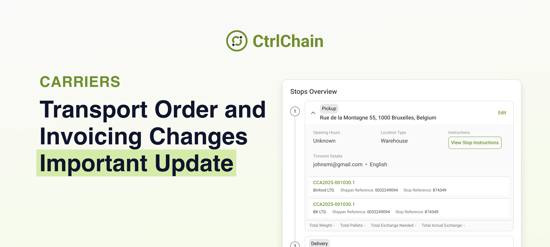

A short step-by-step tutorial that shows you how to make your first pallet booking in less than 2 minutes.
New to pallet shipping in CtrlChain?
This page walks you through your first booking from start to finish. Watch the tutorial, follow the steps, and your first shipment is ready to go.
👉 Watch the video tutorial
(1.5 minutes - from first click to confirmed booking)
Step-by-step overview
1. Start your pallet booking
Click on "Booking" in CtrlChain.
From the service types, select "Pallets".
2. Add pickup and delivery details
Enter your pickup and delivery locations.
Fill in contact name, company, and email for both addresses.
Add your shipper or delivery reference if you use internal references.
Leave carrier instructions if there is anything important the driver should know.
Click "Continue".
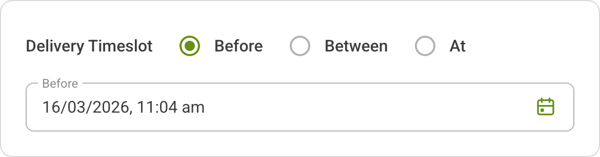 New: Delivery time slot option
You can now indicate if a delivery time slot is required.
- Select Yes if the delivery must take place at a specific time.
- You will then need to choose whether the delivery should be:
- Before a specific time
- Between specific times
- At a specific time
- The available carriers will automatically adjust based on the selected time slot.
- If your saved address already includes a required time slot, this information will be pre-filled automatically.
If you select No, the booking continues as normal without a time slot.
Click "Continue".
3. Enter your pallet information
Choose your pallet type from the three standard options.
Add a short description of the load.
Enter the weight, estimated value, and height of the pallet.
Tip: Double-check the height. It can impact the final shipping cost.
If you have more pallets, click "Add pallet" and repeat the details.
Click "Continue" when done.
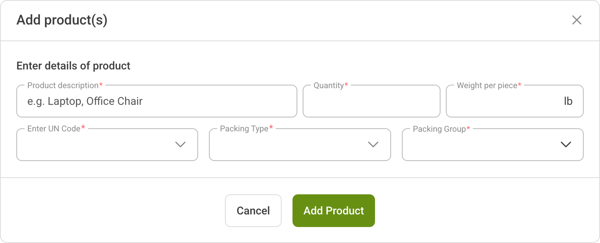 New: ADR (Hazardous goods) option
You can now indicate if your pallet contains ADR (hazardous) goods.
- If selected, you must provide:
- Product description
- Quantity and weight per piece
- UN code
- Packing type
- Packing group
- All ADR fields are mandatory before you can continue.
- Helpful tooltips are available to explain each required field.
If your shipment does not contain ADR goods, simply continue with the standard flow.
Click "Continue" when done.
4. Choose pickup date and carrier
Select your pickup date.
Remember: Next-day pickup is available only for bookings made before 15:00.
Choose your preferred carrier based on delivery time or conditions.
Click "Continue".
5. Review and confirm
Check all your booking details.
Accept the terms and conditions.
Click "Confirm Booking".
Your pallet shipment is now booked.
Labels and tracking
After confirmation, you can:
- Download your shipping label directly from the confirmation window
- Open the order details to see tracking updates once the shipment is on its way
- Access your label anytime later from the same order view
Everything stays in one place so you always know where your shipment stands.
Need help?
If anything in the video is unclear or something does not look right in your account, contact us.
Support
- Reply to your CtrlChain contact by email
- Or reach out via your usual support channel
We are happy to walk through your first booking and make sure you feel confident using CtrlChain for your pallet shipments.